Showing posts with label Technology. Show all posts

Thursday, August 20, 2009

Our new kitchen gadget

My wife and I decided to purchase a kitchen appliance that I have heard a lot about, but never got a chance to try: a bread maker. And I've known several people who have had one, used it for a while, then put it in storage somewhere in the basement. Well, after doing a little research on the topic, I found one machine which met the majority of our requirements, the Cuisinart CBK-200:

The fairly large box holds several items, including:

- The CBK 200 bread maker
- The loaf pan
- The kneading paddle
- A measuring cup for liquids
- A measuring spoon for solids
- An instruction/recipe book

In essence, the bread maker is a fairly simple machine; an enclosed oven with a mixing system within the baking pan. With some simple programming, a timer and a thermostat, the bread maker can mix the dry and wet ingredients, knead them into dough, let the dough rise in a temperature-controlled environment (for as little or a long as required by a specific recipe) and finally bake the dough into delicious bread. One of the nice features is the inclusion of a convection cooking system, which allows for more even baking temperatures, and nicer shaped breads.

The CBK-200 is similar to many other bread makers. It uses a horizontal pan with the mixing paddle in the bottom to make loaves up to 2 lbs in size. Where it differs is with the exterior cladding of the machine, which in the case of the Cuisinart, is stainless steel, as opposed to the more common plastic of competing machines. Several setting buttons allow the user to vary the size of the loaf, the overall browning of the crust, and most importantly, allow various preparation methods, from basic white bread, to whole wheat and more.

We used it this evening to bake a basic white bread, using ingredients to make a 2 lbs loaf. The whole process, from start to finish was done in 3 hours and 15 minutes. Since we took the dough out at the indicated time to remove the mixing paddle, our first bread's shape left a little to be desired. But the taste was fantastic! The crust was golden and crispy, and we wound up eating half of our first bread pretty quickly!

We will continue to experiment with our new purchase, and will comment on our successes and failures at baking bread at home.

Thursday, August 6, 2009

Amazon's Kindle has some competition from Sony

It was bound to happen. After the popular online book retailer Amazon introduced their ebook reader, the Kindle, it was just a matter of time before another manufacturer attempted to jump on the bandwagon of ebook readers. Well, Sony announced two new readers today, the Reader Pocket Edition and the Reader Touch Edition. Sony plans to have the devices out at the end of the month and with a pricing structure that puts it at the same price or just below the Kindle.

The Pocket Edition has a five-inch display, will be available is three colours for the moment, including navy blue, rose and silver, and is sized to fit in a jacket pocket or a purse. It will store about 350 standard eBooks and will last about two weeks on a single charge, if we are to believe Sony's claims.

The Touch Edition is a little bit larger, with a six-inch display that you can control, as the name indicates with touch, using either your finger, a stylus or the virtual keyboard. The device will also includes a built-in Oxford American English Dictionary as well as Memory Card and SD card slots, for additional storage space. Sony has indicated that both models make use of an E Ink Vizplex electronic paper display, that according to Sony representatives, "mimics the look of ink on paper.

The software provided will be compatible with both PCs and Apple platforms and allow users to read documents in several formats, including PDF, Word, BBeB and other text files. Sony has also created an eBook Store online, and new releases and New York Times bestseller titles will be priced at $9.99. The readers will also have access to the 1 million free public domain books that Google has currently digitized. What remains to be seen is Sony's response to the public pressure against their draconian DRM application.

It will be interesting to see what Amazon's response is to Sony's step into this market. I can only anticipate price reductions on current Kindle models, and perhaps some hardware revisions in the near future? It remains to be seen.

Friday, May 29, 2009

Eeebuntu or Ubuntu for the EeePC

Even before I had decided to purchase a netbook, I was intrigued by a modified version of Ubuntu Linux floating around on the Web, called very appropriately Eeebuntu. I downloaded the ISO and continued reading forums and viewing videos of Eeebuntu in operation on YouTube. Being an Apple user at home and a console-only gamer, I have lost interest in Windows and its numerous issues. And the geek part of my personality was looking for a new fix!

When I got my Asus 1000HA home, I plugged it in, connected my external DVD drive to it and ran the Eeebuntu disc I had previously made. The installation proceeded without any difficulties, and within about 35 minutes, I had installed Eeebuntu in a separate partition; I chose to keep Windows in case I ran into any issues running Linux (I was specifically concerned about some of my external hardware, such as the DVD burner mentioned earlier, would not function).

The installation process is very smooth, and clearly explained. Several options are possible, including running Eeebuntu from the Live CD, which leaves the hard drive untouched, and is an excellent way of trying out Linux without having to install it to the hard drive. Nonetheless, I chose to install Eeebuntu in its own partition, and leave the existing Windows installation in a separate partition in the meantime. The process was over quickly and after rebooting, I selected Eeebuntu from the boot menu at launch.

The boot time for Eeebuntu on the 1000HA was quite quick, and that was my first surprise. By my count, the initial boot up process was around 1:00 minute, which is almost 15 seconds quicker than launching Windows XP on the same platform. Subsequent boot up times reduced to about 55 seconds, which I found quite acceptable. The launcher provided by Eeebuntu, which overlays the desktop portion, is a fantastic addition makes a fantastic addition to my netbook, and not only provide a user-friendly environment, but takes advantage of the specific size of the monitor.

Within the next couple of days, a new release of Eeebuntu was made available online, version 9.04 which I upgraded to one evening. This version has corrected small flaws that I had discovered (unsuccessful wireless reconnection after waking from suspension, not keeping screen brightness settings after waking from suspension, etc...) and improved boot up time simultaneously. A cold boot up now requires 48 seconds, an improvement over the previous version, and something that I will continue to experiment with so as to improve.

I will continue this post next week, with further comparison testing and feedback on my experience.

Thursday, May 28, 2009

Replacing a fantastic mouse... With another fantastic mouse

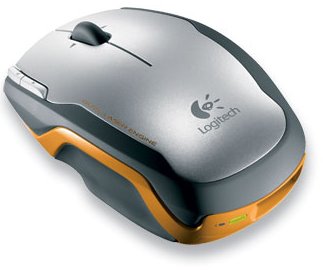
Well, today is my birthday and my wonderful wife has once again selected a perfect gift to celebrate the occasion, a new Logitech® V550 cordless laser mouse. I had been in the market for a new mouse to replace my previous Logitech® cordless mouse. I can't fault Logitech® when it comes to building mice and trackballs. I have used several of their products in the last 15 years and once again, I have confirmation as to why they are the leader in this industry. Three years ago, when I replaced my original Apple Mighty Mouse with a Logitech V400 Cordless laser mouse, I wrote a short review for it here. Since then, I have given this mouse to my wife and it still works very well to this day.

The V550 is part of Logitech®'s new line of cordless laser mice, with the new Hyperspeed scroll wheel. In essence, the new scroll wheel is weighted and supported by low friction points, allowing a smooth, continuous motion in use. With a nice tactile feedback, this new wheel is what sold me initially to the new series of devices out this year. It is a three button mouse, but the third button is small, and right in the center of the mouse, just below the scroll wheel, as seen on the image below (courtesy of Logitech®):

The mouse is on the smaller side, designed for notebook users specifically, especially when taking into account the newly redesigned USB Nano Receiver included with the design:

The receiver is so small that the USB adapter portion is almost three times as long! This allows the receiver to stay connected to a notebook without concern about accidental breakage when putting the laptop into a bag. Logitech® has also conveniently provided an internal storage space for the receiver, to allow for convenient travel. Storing the receiver inside the mouse toggles an off switch, preventing unnecessary power drain when not in use.

Speaking of power, Logitech® claims an ultra-long 18 months of expected battery life! The dual AA batteries add a small amount of weight to the device, but should provide at least twice the expected lifespan. On close examination of the underside of the mouse, it is easy to see that Logitech® has considered power management with this device:

A power button is thoughtfully provided, allowing the user to turn off the device when not in use. You may have noticed the metallic bracket in the center of mouse, with a recessed button. This is part of Logitech®'s Clip-and-Go Dock feature. Using a provided metal adhesive-backed attachment pin, it is possible for a user to attach the mouse to a laptop cover for convenient carrying:

A simple removal tool is provided, as well as a second attachment pin, in a convenient little tin.

Logitech includes the following in the retail package:

o Logitech® V550 Nano Cordless Laser Mouse for Notebooks
o 2.4 GHz Plug-and-Forget Nano-receiver
o 2 Clip-and-Go docks
o 1 Clip-and-Go storage box
o 1 Clip-and-Go dock-removal tool
o Desktop USB extension stand
o 2 AA batteries
o 2 cleaning wipes
o Quick-start guide
o 3-year limited hardware warranty

Logitech® no longer includes CDs in their packaging, but drivers are easily available online from their website. The new Control Center (for both Windows and Apple platforms) allows the user to customize the actions of each button on the mouse, in a simple and easy to use fashion. I use this mouse on a netbook (an Asus 1000HA) running Ubuntu, and although the Control Center is not available under Linux, the mouse still functions very well. It is not possible to configure the buttons in the same way as possible under Windows or OS X, but features like acceleration and scroll speed can be set easily.

So far, I am completely impressed with this mouse, and I have to thank my wife again for this thoughtful gift!

Sunday, May 3, 2009

A notebook by any other name...

Well, I have decided to stray from my Apple-fanism, and purchased a new computer. But not any type of computer; I have decided to take the leap and try out a new category of computer, the netbook. Of course, my first idea was to get a new MacBook, but with finances being what they are, I was left with far too little funding for anything other than a budget laptop. Since that was pretty much out of the question, I started examining these new netbooks. Being a fairly new category, most likely cooked up by some marketing-types, the netbook is essentially a sub-notebook computer. With displays ranging from 7" to 10", most of these devices are designed to be easy to carry.

Currently, the processors of choice for these devices are from Intel's Atom series. Although they are somewhat underpowered compared to many of the newer processors today, they are very, very efficient from a power consumption perspective.

After doing a bit of research through the various manufacturers websites and netbook forums, I settled on Asus. They pretty much started the trend towards these computers with their EeePC series. My biggest problem was making a selection, as Asus offers many different models. I had a few criteria to help me in my selection:

  1. An actual keyboard, not some over-compressed cellphone dialpad

  2. An actual hard drive with a decent capacity, rather than a first-generation flash-based hard drive

  3. Decent build quality

With these points in mind, I narrowed down my choice to the 900HA or the 1000HA. The primary differences with these two devices were:

  • The 900HA has a 8.9" screen, while the 1000HA has a 10.2" screen

  • The 900HA has 0.3 megapixel camera, while the 1000HA has a 1.3 megapixel camera

  • The 900HA has a rated battery life of 4.5 hours, while the 1000HA has a rated battery life of 7.5 hours

Another obvious trade off with the 1000HA is its larger physical dimensions and weight, but when compared, it really isn't such a huge difference. But what sealed the deal was the price; I was able to get the 1000HA for almost $50 less than the 900HA! Go figure.

I got the box home and was looking forward to trying out the little machine. Like all EeePC models, the packaging and contents are basically the same. Although the 1000HA has no CD or DVD drive, Asus conveniently provides a DVD with an image of Windows XP SP3 and drivers. It's a nice addition, although my plans included an installation of Linux on my netbook.

I will post more as I spend time using this great little device!

Wednesday, January 2, 2008

Software review: iBank

I've decided that this year was the year I would get my finances back on track, and being a OSX user, I thought I would forego the usual PC choices and select an application that was designed from the ground up for this platform. This led me to iBank. Now, keep in mind, I'm not sure if this is the solution I would select if I was a multimillionaire, but I think that in my case, the scale of the application mirrors my needs perfectly.

I can tell this was designed by someone from my generation, when one of the built-in expense categories is Dining: Coffee! In my book, that truly deserves a category of it's own! Here's a look at the main interface:


It's been a pleasure setting up my budget, and the excellent Budget Monitor feature let's me see at a glance if I am sticking to my budget. With scheduled transactions, alarms and reminders indicate bills and due payments, so missed due dates are a thing of the past (knock on wood!):


I have been having some technical issues with the application though, with several crashes in the last couple of uses. Of course, I have not yet rebooted the system, and I would like to make sure that the OS is not the culprit here, rather than this program.

More to follow...

New Bluetooth keyboard

Hello all! First of all, my apologies for not creating a new post in quite a while, but I plan on making the most of 2008.

For my first post of the year, I thought we would take a look at Apple's new Bluetooth Wireless Keyboard:

This keyboard follows Apple's new design and improves on the portability of the keyboard by removing the extra numeric keyboard available on the wired version.

A side view of the keyboard is a testament to the minimalist design philosophy that Apple has adopted lately, and as some have said "either you love it or you hate it!"

Personally, I am in the LOVE camp, and I can't wait to get my grubby hands on one. I don't make much use of the Bluetooth functionalities of my Mac, and I think it's high time that I did. The keyboard is wisely powered by 3 AA format batteries (included with the initial purchase no less!!), and the smart power management turns the keyboard off during periods of inactivity, only to resume function as soon as the user begins typing again. I would really like to know what real-world power usage is like for one of these babies!

More information will follow as soon as I have performed some testing.

Until then...
---
Well, I do have an update. My wonderful wife got me a new Apple Keyboard for Christmas, and let me tell you, it is by far the best keyboard that I have had the chance to use. Not only aesthetically pleasing, this keyboard has a fantastic action that is the same as the wireless version. I was very happy to receive the wired version, as I make use of the USB ports on the keyboards, and these are still available on the new version.

A sweet keyboard!!

Sunday, March 18, 2007

And now, the iPhone

By now, most Apple fans have already seen the prototype iPhone that Steve Jobs revealed in his last presentation. And what a great looking device:


But is this the killer device that many people are speculating about, or is it another bloated, RIM clone that have been popping up here and there in the last couple years? To be honest, I'm not sure! I haven't had a chance to actually use one of these slick-looking devices. But from a conceptual point of view, I can't help but think that this isn't it... As you pick you jaw off the floor, please remember that I am an Apple fan, but first and foremost, I am a fan of great concepts! The iPhone (and never mind the legal issues surrounding the choice of names) is a great looking, and probably easy to use device, but it's not doing anything for me...


There are many schools of thought when it comes to the ultimate portable device; what types of features should these devices include are the primary areas of differences. What remains similar are the basic elements, such as the form factor, and weight, and even then, there have been noted differences in concepts, such as the Sony PSP:


or a different Sony solution, the UX390N:


and even the Nokia 770:


Everyone has a different idea of what this type of device should do, and so do I... I will reserve judgement until I can actually test the device out for myself.

Until then...

Monday, October 23, 2006

What about iTV?

For those who may not have heard the news, Apple is trying really hard to take over your living room. All kidding aside, Steve Jobs announced, during the last keynote presentation, that Apple was hard at work on a new device, codenamed iTV (since the name is already in use by Monster Cable, I doubt the name will stick!) and it was set to revolutionize your living room by bringing Apple smack-dab in the middle!

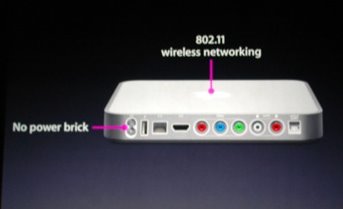
Of course, since the keynote, where some details about the capabilities of this new device were announced, there has been a lot of speculation about what would and would not be included at launch, scheduled for Q1 of 2007. Here is the shot that was displayed during the presentation:


As you can see, the iTV follows the form factor of the Mac Mini, and from the picture of the rear of the device, we can deduce some of the features:


During his speech, Steve Jobs alluded to some of the functions that will be available on the multimedia device:

  • HDMI connector (x1)

  • Component Video connectors (x1)

  • Audio L/R

  • Digital audio (x1)

  • Ethernet and 802.11g

  • USB 2.0

  • And a built-in power supply, eliminating any external power bricks

With this pretty impressive list of features, as well as full integration with iTunes on both the Mac and the PC platform, and an announced retail price of $299, Apple is going to make a dent in the multimedia market, that's sure.

Engadget has posted a hands-on review of a prototype device. As far as I can see, the prototype looks exactly like the device displayed during the keynote. Another hot debate going on is whether the iTV will support any PVR-type functionality, as well as a hard drive. Both topics remain to be seen!

The Sony PSP and Apple...

As soon as I saw the Sony PSP, I fell in love with it. I know, you may get a laugh out of this, but as a geek at heart, any neat gadget really gets my attention. And the PSP was great! I had to have one, and a few months ago, when an upcoming trip to India gave me reason to shell out the money, I bought my PSP. I purchased the Giga Pack, which Sony was promoting as a great deal: the PSP, a carry case, a 1GB Memory Stick Duo card. I also wound up pickup up a couple games (for your information, Grand Theft Auto: Liberty City Stories and Syphon Filter, both excellent games in my opinion).

In the time I've had my PSP, several friends have suggested that I mod it, but I didn't want to go that route, because I just don't find any advantage to free gaming, if I need to get memory cards to store these games. But my concern has come with my platform of choice, OS X. Since the PSP has USB connectivity, the thought that both devices would be fully compatible did cross my mind!!!

For those who are not aware, the PSP is compatible, in a sense, with OS X. It is possible to browse the PSP once connected and mounted, but unfortunately, it is not possible to properly format and delete data. I imagine that this is due to some restrictions based on write format, but no matter. There are several solutions that have cropped up, and here are a few of them:

1. PSP Ware: In my opinion, PSP Ware, by Nullriver Software, is by far the best solution available for OS X users. Once installed, PSP Ware allows a Mac user to sync their PSP with their Mac. Users are able to select music from their iTunes library, images from their iPhoto library, convert movie files and DVD to PSP format, sync bookmarks from Safari, backup saved games and more. This application also allows users to manager multiple memory sticks, simply and securely. This application currently sells for $15.00 and is up to version 2.5.1.

2. iPSP: iPSP by RnSK Softronics provides the same type of functionality as PSP Ware above, although it also includes some features that can make it very useful in conjunction with a "modded" PSP. The ability to sync homebrew applications is a great feature, as well as some advanced file management options make this a worthy competitor to PSP Ware.

Of course, for those who do not want or need an all in one solution, there are several applications that can be used to extract, rip and compress video to PSP standards. Most of these tools work very quickly on the OS X platform, and based on your specific requirements, may suit your needs better than the two proposed programs listed above.

Explore and have fun!

Wednesday, September 13, 2006

Apple is upgrading the iPod Nano and the iPod Shuffle..

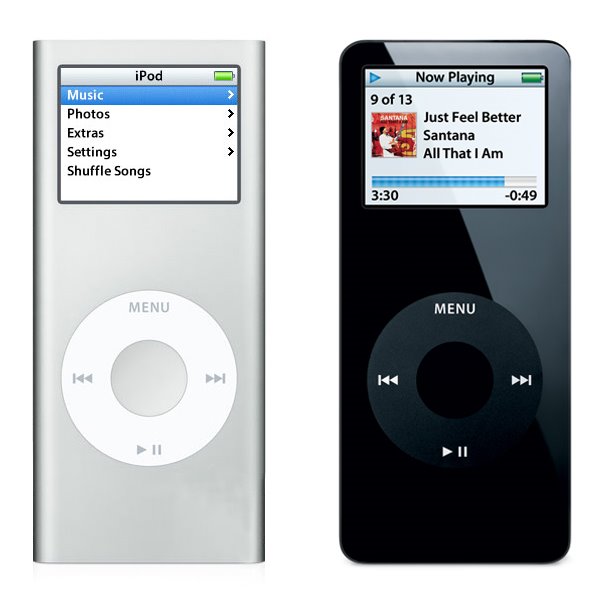
Apple announced some more hardware changes again today; the iPod Nano line is getting a full revamp. Very, very similar to the iPod Mini, the new Nano features an anodized aluminum outer skin, and capacities that include a 2GB, 4GB and now an 8GB model. The new device is also a little slimmer, measuring a measly 0.26" in thickness, although otherwise retaining the same dimensions as the previous incarnation of the Nano (3.5" high by 1.6" wide, with a weight of 1.41 ounces). Apple also claims that the new device has an increased battery life.

The following picture shows a side by side comparison, to scale, of the newer Nano on the left, and the first generation Nano on the right:

I own a first generation Nano, and I am very happy with it so far. I also have a first generation iPod Mini, and I also enjoyed it. I've come to expect Apple to update the iPod line on a regular basis now, and each time, they seem to come up with new innovations that keep them in the lead in this very aggressive market.

Let's see what they'll come up with next...

Monday, September 11, 2006

Replacing my Mighty mouse...

I had some mixed feelings about my Apple Mighty mouse, and since I have always eventually replaced the stock Apple mice with another device, I thought I might once again, try something new. Don't get me wrong, I think the Might mouse is not a bad mouse. Once you've tried the Scroll Ball, you'll have a hard time going without, but another device caught my eye, and now that I've had a chance to try it with my iMac, I think that I have found the replacement mouse I was looking for. The Logitech V400 Wireless Laser mouse is a great wireless pointing device:


Logitech has incorporated pretty much all of the current technology in wireless mice into this particular model. It uses a dual laser to apparently increase the level of precision, and the wireless portion uses 2.4GHz rather than 27MHz used in some other competing devices. I know what some of you may be thinking: "2.4GHz, hey that's the same as my cordless phone, wireless network and so on, won't there be interference?" Well, I have some wireless phone, a wireless network and I have yet to experience any issues with interference.

This mouse includes five buttons, a scroll wheel with side scroll capability and is a real pleasure to use. The buttons have an excellent feel (except the small accessory buttons, which are somewhat harder to use), and the track wheel is slight notched and provides just the right amount of tactile feedback. The mouse is a bit on the small side, and is marketed towards the business traveller, as Logitech states that this mouse is built using a rugged chassis, to survive the rigors of travel. Personally, I like that the wireless adapter stores in the back of the mouse, while serving to turn the mouse on or off. This can be a real blessing, as when the mouse is stored in this manner, you can be assured that it is off. I do not have any experience yet with battery life, but I have inserted the included Duracell AA battery (a single battery only), and I will report on the battery life.

Overall, a great device that I highly recommend!

Wednesday, September 6, 2006

New from Apple...

Apple announced a number of hardware changes today, starting with the iMac with 24" screen, which includes the new Intel Core 2 Duo, running at either 2.16 or 2.33GHz. The 24" iMac also includes something that several Apple users have complained about in the past, Firewire 800 (1 port), as well as a Firewire 400 port. Of course, as the new iMac makes use of the new processor family, the other iMacs have also been upgraded to the Core 2 Duo line of CPUs. The line now includes the iMac 17", with either the 1.83 or 2.00GHz processor, the iMac 20", with 2.16GHz processor and the aformentionned iMac 24", with the 2.16 or 2.33GHz processor.

As I had mentionned in a previous post, some changes were also made to the Mac Mini line, with changes to the processor familly, namely to the Core Duo processor. The line now includes the Mac Mini with 1.66GHz Core Duo processor without Superdrive or the 1.83GHz Core Duo processor with Superdrive. Of course, the only thing Apple is talking about is the change to the iMac line... It is the showstopper, and I think that it is reasonable to expect a 30" iMac at some point in the future, based on the existing monitor made by Apple.

Thursday, August 31, 2006

Unlocking the power of iTunes 2: Adding new visualizations

In our previous encounter, we learned about the various controls available from the keyboard in iTunes, specifically for controls related to visualizations... Well now, we need to learn how to add new visualizations to accompany the Visualizer provided by Apple.

This process is really broken down into two steps:

1. Locate and download a new visualization for iTunes

2. Move (or copy) the new visualization to the iTunes folder

There are several places to begin searching for new visualizations; an easy first choice is Google, followed by Apple's Downloads section. When one or more visualizations have been downloaded, it is time to move (or copy) them to the iTunes folder, in a specific place. The path to use is:

User folder / Library / iTunes / iTunes Plug-Ins


All new visualizations need to be placed within this folder. If iTunes was running, quit and relaunch the application, and the new visualizations should be available to select from the Visualizer menu, as can be seen in the image below:


Have fun and see what else is available; I've been really enjoying one called NastyFFT, a great real-time, colour-switching spectrum analyzer...

Keep in mind that using the path provided above installs the new visualizations for the active user only, and not every user on the system. In order to have visualizations available to every user, move (or copy) the visualizations to the following folder:

Hard drive / Library / iTunes / iTunes Plug-Ins

In our next installment, we will explore some options available using playlists and smart playlists!

Wednesday, August 30, 2006

Unlocking the power of iTunes 1: Visualization control

For those who have been using iTunes since it has come out, the following information might be old news, but for several new Apple users, this might be entirely new. iTunes is a fairly straightforward application to use, and most users, although proficient, are only aware of about 75% of what iTunes is capable of doing. This article will deal with the control of visualizations in iTunes. As you may already be aware, Apple has included a fairly complex, if somewhat psychadelic, set of visualizations for iTunes. These visualizations are built on a three concept: one layer, labelled the Visualization Form, a second layer, labelled the Visualization Effect and a third layer, labelled Visualization Colour. It is the combination of these three independant layers that creates the seemingly endless possibilities of Apple's visualizations.



But now that we are aware of these layers, a question that comes to mind is how many are there and are they listed? Well, yes, and someone has gone through the trouble of listing the contents of these layers at Winston's iTunes Cheet Sheet. Apple has thoughtfully provided several keyboard controls for iTunes that are simply not published for consumers. Some of these keyboard controls are specifically for the advanced control of visualizations.

The three following controls, which allow the user to toggle each layer independantly, is used to create a specific combination of layers to reach a desired visual effect. These controls are:

  • Q / W - toggle visualization "form"


  • A / S - toggle visualization "effect"


  • Z / X - toggle visualization "color"


Once a desired combination is reached, it can be frozen, or saved and assigned to a designated numerical key by using other commands. This can be an interesting addition for anyone using iTunes in a DJ setting, as it provides the ability to project a programmed visualization on cue. Here are these additional commands:

  • D - Reset Visualization to default


  • N - toggle Normal or high-contrast colors


  • M - Manually select config mode (user, freeze, random)


  • R- Randomly select config mode


  • C - display Current visualization config


  • NUM keys - user config presets (use SHIFT and # to record a preset)


Have fun experimenting with these settings. They can provide a new and interesting feature to a great media player like iTunes.

In the next installment, we will look at adding new visualizations to iTunes and where these can be procured...

New addition to Apple's Board of Directors...

In a press release announced today, Apple Computer Inc. indicated that Dr. Eric Schmidt was named to Apple's Board of Directors. With the addition of Dr. Schmidt, the Board of Directors now numbers eight, and includes:


  1. Fred D. Anderson, Partner, Elevation Partners and former CFO (Chief Financial Officer), Apple Computer, Inc.


  2. Bill Campbell, Chairman and former CEO Intuit Corp.


  3. Millard Drexler, Chairman and CEO J. Crew


  4. Albert Gore Jr., Former Vice President of the United States


  5. Steve Jobs, CEO, Apple


  6. Arthur D. Levinson, Ph. D., Chairman and CEO Genentech


  7. Jerry York, Chairman, President and CEO Harwinton Capital


  8. and

  9. Dr. Eric Schmidt, CEO Google


Dr. Schmidt has a long resume, which includes his current positions as CEO of Google, as a member of the Google board of directors, and finally, as a member of the Princeton University board of trustees. He was also formerly the CEO of Novell as well as the CTO (Chief Technology Officer) at Sun Microsystems Inc.

"Eric is obviously doing a terrific job as CEO of Google, and we look forward to his contributions as a member of Apple's board of directors," said Steve Jobs, Apple's CEO. "Like Apple, Google is very focused on innovation and we think Eric's insights and experience will be very valuable in helping to guide Apple in the years ahead."

Rumours of Mac Mini hardware update...

Rumours have been flying around about some proposed changes to the Mac Mini line. According to these latest rumours, Apple would keep the existing 1.66 GHz Core Duo model, and add a 1.83 GHz Core Duo model, while dropping the 1.5GHz Core Solo model. This decision would eliminate any Core Solo platforms from Apple's line of computers. No timelines have been indicated yet, but information is sure to leak out any time... Keep in mind that Apple did the same thing to the Mac Mini last year, without advertising the changes in hardware that were made to the model line. Several analysts have suggested that Apple has chosen to follow this strategy in order to liquidate inventory without having to resort to drastic retail price cuts.
More information can be found over at Think Secret, as well as lots of assorted news and rumours...

Monday, August 28, 2006

Using scripts with iTunes...

It has come to my attention that several friends of mine have been using iTunes as their primary media player for a little while now, and although many of them are PC users, there are a few that are Apple users. And it is for these people that I write today; I would like to teach you to add functionalities to iTunes using some pre-built scripts. These scripts are Applescripts, and they can provide you with the ability to make iTunes work exactly the way you want.

This is a three step process, so here goes:

1. The first step is to locate the folder user/Library/iTunes and insert a new folder labelled Scripts.

2. Locate some existing scripts; a great site for this is Doug's Applescripts for iTunes site. So far, they have over 400 scripts available for free download.

3. Once you've downloaded a few scripts, unzip them and copy the scripts to the Scripts folder created earlier.

A new icon becomes available in the iTunes menu; this icon allows a user easy access to the new functions provided by the scripts.

Have fun...

Wednesday, August 16, 2006

On the purchase on my new Intel Dual Core iMac 20"...

I finally broke down and purchased my new Mac; I got a great deal from Best Buy, who although had the sam price as everyone else, gave a free iPod Nano (1GB) model to anyone purchasing an iMac. It was a no brainer... I decided to get a 512MB RAM model, as I can purchase RAM separately and save almost 200$ in the process. As for the hard drive upgrade, all I can say is that I am satisfied with the present capacity, with the 250GB SATA drive currently installed.

As soon as I got it home, I unpacked it and connected it by FireWire, to my Cube. It took only a few moments, and I was able to browse the Cube from the iMac. I transferred all of my documents, data and files over to the iMac, then connnected it to the router, so that I could get connected to my Powermac. I proceeded to transfer a copy of my Music folder to the iMac, as well as all of my images and movies. With this transfer complete, I wiped the information from the Powermac and liberated almost 85GB of storage space. And with the ability to burn DVD with the iMac, I have been archiving some data on DVD; I may just have to pick up a pack of the Dual Layer DVD-R, with even more capacity.

So far, I am tremendously satisfied with my purchase. It is a very noticeable increase in speed and performance, as well as a definite upgrade where the monitor is concerned. Seeing the iMac and my old 17" monitor side by side really hammered that point in, with the sharpness, brightness and overall size of the iMac LCD dwarfing the 17" CRT.

More on the iMac once I have more information to report...

Tuesday, August 15, 2006

On the subject of input devices...

After having used a Griffin PowerMate controller for over 2 years now, I can safely say that I am a firm believer in new input technologies. This fascinating device allows a new input method for computers, and is compatible both with Windows and OS X. As computer users, we have become familiar with two very specific input devices, the keyboard and the mouse. Of course, there have been variations on the basic designs of these two devices, but they all function in essentially the same manner as the original design. The PowerMate is slightly different, as it is an assignable controller; this means that with the use of software, this device can provide different kinds of inputs in different circumstances.


Because the PowerMate provides several input methods (specifically, rotation, single click, double-click and click during rotate), these can provide several functionalities within software that you might use today. For example, when I am using Microsoft Word, the rotation input allows me to scroll through the open document, while this same rotation input provides volume control in iTunes.

Of course, the PowerMate does not replace the mouse or keyboard, but simply adds to this combination. The other day, as I was browsing through Logitech's website, I saw a link for one of their subsidiaries, called 3Dconnexion; once on their site, I quickly deduced that they specialized in input devices, similar in concept to the PowerMate and just as revolutionary... As their website states: "These devices will revolutionize the way you work in 3D - pan, zoom and rotate all at once! From F1 racing and aerospace design to animated film and game development". They have calculated that on average, most users increase their productivity by up to 30%, and reduce overall mouse use by over 50%. That can be excellent news for anyone suffering from repetitive stress injuries.

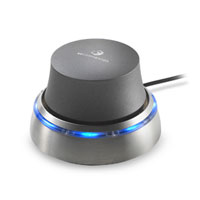
One of the devices that caught my eye was the SpaceTraveler. It is a compact motion controller that on first appearance seems to copy the PowerMate. But appearances can be deceiving; the SpaceTraveller provides 6 axes of control, in what is essentially a very stubby joystick. But in this application, the concept of the joystick is taken out of the gaming world and brought into a new spere...


The SpaceTraveler is the perfect space saving solution for the designer who prefers a more efficient two-handed work style.Simultaneously pan, zoom and rotate 3D models or datasets with the controller in one hand while the other hand selects, inspects or edits with the mouse.

Another device that caught my eye seems to be a refinement on the SpaceTraveller, and it is called the SpaceBall (no, I am not kidding)... This device is somewhat larger that its diminuative cousin, but I can imagine that for professionals, who perform thousands of hours of CAD design, or animation and similar fields, might find this device more useful.


The SpaceBall features enhanced high-precision optical controller, drift-free/calibrationless sensor mechanism and a contactless/non-wearing measuring system. The 5000 model is available in USB.

Go take a look a some of these devices if you can; it may change your mind about the ones that you have been using at home. Some gamers have already understood this and several specialized devices have come out on the market lately, aimed squarely at this audience.