Monday, October 23, 2006

What about iTV?

For those who may not have heard the news, Apple is trying really hard to take over your living room. All kidding aside, Steve Jobs announced, during the last keynote presentation, that Apple was hard at work on a new device, codenamed iTV (since the name is already in use by Monster Cable, I doubt the name will stick!) and it was set to revolutionize your living room by bringing Apple smack-dab in the middle!

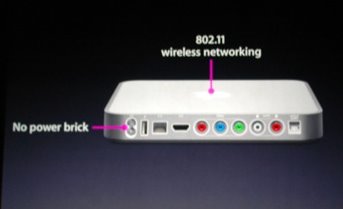
Of course, since the keynote, where some details about the capabilities of this new device were announced, there has been a lot of speculation about what would and would not be included at launch, scheduled for Q1 of 2007. Here is the shot that was displayed during the presentation:


As you can see, the iTV follows the form factor of the Mac Mini, and from the picture of the rear of the device, we can deduce some of the features:


During his speech, Steve Jobs alluded to some of the functions that will be available on the multimedia device:

  • HDMI connector (x1)

  • Component Video connectors (x1)

  • Audio L/R

  • Digital audio (x1)

  • Ethernet and 802.11g

  • USB 2.0

  • And a built-in power supply, eliminating any external power bricks

With this pretty impressive list of features, as well as full integration with iTunes on both the Mac and the PC platform, and an announced retail price of $299, Apple is going to make a dent in the multimedia market, that's sure.

Engadget has posted a hands-on review of a prototype device. As far as I can see, the prototype looks exactly like the device displayed during the keynote. Another hot debate going on is whether the iTV will support any PVR-type functionality, as well as a hard drive. Both topics remain to be seen!

The Sony PSP and Apple...

As soon as I saw the Sony PSP, I fell in love with it. I know, you may get a laugh out of this, but as a geek at heart, any neat gadget really gets my attention. And the PSP was great! I had to have one, and a few months ago, when an upcoming trip to India gave me reason to shell out the money, I bought my PSP. I purchased the Giga Pack, which Sony was promoting as a great deal: the PSP, a carry case, a 1GB Memory Stick Duo card. I also wound up pickup up a couple games (for your information, Grand Theft Auto: Liberty City Stories and Syphon Filter, both excellent games in my opinion).

In the time I've had my PSP, several friends have suggested that I mod it, but I didn't want to go that route, because I just don't find any advantage to free gaming, if I need to get memory cards to store these games. But my concern has come with my platform of choice, OS X. Since the PSP has USB connectivity, the thought that both devices would be fully compatible did cross my mind!!!

For those who are not aware, the PSP is compatible, in a sense, with OS X. It is possible to browse the PSP once connected and mounted, but unfortunately, it is not possible to properly format and delete data. I imagine that this is due to some restrictions based on write format, but no matter. There are several solutions that have cropped up, and here are a few of them:

1. PSP Ware: In my opinion, PSP Ware, by Nullriver Software, is by far the best solution available for OS X users. Once installed, PSP Ware allows a Mac user to sync their PSP with their Mac. Users are able to select music from their iTunes library, images from their iPhoto library, convert movie files and DVD to PSP format, sync bookmarks from Safari, backup saved games and more. This application also allows users to manager multiple memory sticks, simply and securely. This application currently sells for $15.00 and is up to version 2.5.1.

2. iPSP: iPSP by RnSK Softronics provides the same type of functionality as PSP Ware above, although it also includes some features that can make it very useful in conjunction with a "modded" PSP. The ability to sync homebrew applications is a great feature, as well as some advanced file management options make this a worthy competitor to PSP Ware.

Of course, for those who do not want or need an all in one solution, there are several applications that can be used to extract, rip and compress video to PSP standards. Most of these tools work very quickly on the OS X platform, and based on your specific requirements, may suit your needs better than the two proposed programs listed above.

Explore and have fun!

Wednesday, September 13, 2006

Apple is upgrading the iPod Nano and the iPod Shuffle..

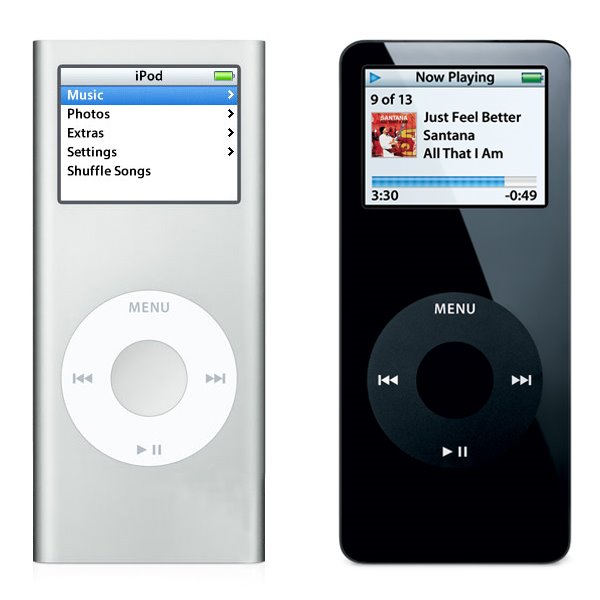
Apple announced some more hardware changes again today; the iPod Nano line is getting a full revamp. Very, very similar to the iPod Mini, the new Nano features an anodized aluminum outer skin, and capacities that include a 2GB, 4GB and now an 8GB model. The new device is also a little slimmer, measuring a measly 0.26" in thickness, although otherwise retaining the same dimensions as the previous incarnation of the Nano (3.5" high by 1.6" wide, with a weight of 1.41 ounces). Apple also claims that the new device has an increased battery life.

The following picture shows a side by side comparison, to scale, of the newer Nano on the left, and the first generation Nano on the right:

I own a first generation Nano, and I am very happy with it so far. I also have a first generation iPod Mini, and I also enjoyed it. I've come to expect Apple to update the iPod line on a regular basis now, and each time, they seem to come up with new innovations that keep them in the lead in this very aggressive market.

Let's see what they'll come up with next...

Monday, September 11, 2006

Replacing my Mighty mouse...

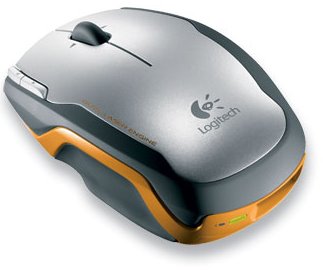
I had some mixed feelings about my Apple Mighty mouse, and since I have always eventually replaced the stock Apple mice with another device, I thought I might once again, try something new. Don't get me wrong, I think the Might mouse is not a bad mouse. Once you've tried the Scroll Ball, you'll have a hard time going without, but another device caught my eye, and now that I've had a chance to try it with my iMac, I think that I have found the replacement mouse I was looking for. The Logitech V400 Wireless Laser mouse is a great wireless pointing device:


Logitech has incorporated pretty much all of the current technology in wireless mice into this particular model. It uses a dual laser to apparently increase the level of precision, and the wireless portion uses 2.4GHz rather than 27MHz used in some other competing devices. I know what some of you may be thinking: "2.4GHz, hey that's the same as my cordless phone, wireless network and so on, won't there be interference?" Well, I have some wireless phone, a wireless network and I have yet to experience any issues with interference.

This mouse includes five buttons, a scroll wheel with side scroll capability and is a real pleasure to use. The buttons have an excellent feel (except the small accessory buttons, which are somewhat harder to use), and the track wheel is slight notched and provides just the right amount of tactile feedback. The mouse is a bit on the small side, and is marketed towards the business traveller, as Logitech states that this mouse is built using a rugged chassis, to survive the rigors of travel. Personally, I like that the wireless adapter stores in the back of the mouse, while serving to turn the mouse on or off. This can be a real blessing, as when the mouse is stored in this manner, you can be assured that it is off. I do not have any experience yet with battery life, but I have inserted the included Duracell AA battery (a single battery only), and I will report on the battery life.

Overall, a great device that I highly recommend!

Wednesday, September 6, 2006

New from Apple...

Apple announced a number of hardware changes today, starting with the iMac with 24" screen, which includes the new Intel Core 2 Duo, running at either 2.16 or 2.33GHz. The 24" iMac also includes something that several Apple users have complained about in the past, Firewire 800 (1 port), as well as a Firewire 400 port. Of course, as the new iMac makes use of the new processor family, the other iMacs have also been upgraded to the Core 2 Duo line of CPUs. The line now includes the iMac 17", with either the 1.83 or 2.00GHz processor, the iMac 20", with 2.16GHz processor and the aformentionned iMac 24", with the 2.16 or 2.33GHz processor.

As I had mentionned in a previous post, some changes were also made to the Mac Mini line, with changes to the processor familly, namely to the Core Duo processor. The line now includes the Mac Mini with 1.66GHz Core Duo processor without Superdrive or the 1.83GHz Core Duo processor with Superdrive. Of course, the only thing Apple is talking about is the change to the iMac line... It is the showstopper, and I think that it is reasonable to expect a 30" iMac at some point in the future, based on the existing monitor made by Apple.

Thursday, August 31, 2006

Unlocking the power of iTunes 2: Adding new visualizations

In our previous encounter, we learned about the various controls available from the keyboard in iTunes, specifically for controls related to visualizations... Well now, we need to learn how to add new visualizations to accompany the Visualizer provided by Apple.

This process is really broken down into two steps:

1. Locate and download a new visualization for iTunes

2. Move (or copy) the new visualization to the iTunes folder

There are several places to begin searching for new visualizations; an easy first choice is Google, followed by Apple's Downloads section. When one or more visualizations have been downloaded, it is time to move (or copy) them to the iTunes folder, in a specific place. The path to use is:

User folder / Library / iTunes / iTunes Plug-Ins


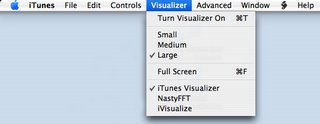
All new visualizations need to be placed within this folder. If iTunes was running, quit and relaunch the application, and the new visualizations should be available to select from the Visualizer menu, as can be seen in the image below:


Have fun and see what else is available; I've been really enjoying one called NastyFFT, a great real-time, colour-switching spectrum analyzer...

Keep in mind that using the path provided above installs the new visualizations for the active user only, and not every user on the system. In order to have visualizations available to every user, move (or copy) the visualizations to the following folder:

Hard drive / Library / iTunes / iTunes Plug-Ins

In our next installment, we will explore some options available using playlists and smart playlists!

Wednesday, August 30, 2006

Unlocking the power of iTunes 1: Visualization control

For those who have been using iTunes since it has come out, the following information might be old news, but for several new Apple users, this might be entirely new. iTunes is a fairly straightforward application to use, and most users, although proficient, are only aware of about 75% of what iTunes is capable of doing. This article will deal with the control of visualizations in iTunes. As you may already be aware, Apple has included a fairly complex, if somewhat psychadelic, set of visualizations for iTunes. These visualizations are built on a three concept: one layer, labelled the Visualization Form, a second layer, labelled the Visualization Effect and a third layer, labelled Visualization Colour. It is the combination of these three independant layers that creates the seemingly endless possibilities of Apple's visualizations.


But now that we are aware of these layers, a question that comes to mind is how many are there and are they listed? Well, yes, and someone has gone through the trouble of listing the contents of these layers at Winston's iTunes Cheet Sheet. Apple has thoughtfully provided several keyboard controls for iTunes that are simply not published for consumers. Some of these keyboard controls are specifically for the advanced control of visualizations.

The three following controls, which allow the user to toggle each layer independantly, is used to create a specific combination of layers to reach a desired visual effect. These controls are:

  • Q / W - toggle visualization "form"


  • A / S - toggle visualization "effect"


  • Z / X - toggle visualization "color"


Once a desired combination is reached, it can be frozen, or saved and assigned to a designated numerical key by using other commands. This can be an interesting addition for anyone using iTunes in a DJ setting, as it provides the ability to project a programmed visualization on cue. Here are these additional commands:

  • D - Reset Visualization to default


  • N - toggle Normal or high-contrast colors


  • M - Manually select config mode (user, freeze, random)


  • R- Randomly select config mode


  • C - display Current visualization config


  • NUM keys - user config presets (use SHIFT and # to record a preset)


Have fun experimenting with these settings. They can provide a new and interesting feature to a great media player like iTunes.

In the next installment, we will look at adding new visualizations to iTunes and where these can be procured...